Mobile accessibility
Phones and tablets introduce touch targets, motion, zoom, and screen-reader gestures that desktop-only QA can miss. This guide covers how failures show up on small screens and how to test them honestly—without pretending a single tool covers every native app scenario.
Why this matters
Mobile traffic is often the majority of visits. People complete tasks on the bus, outdoors, or one-handed. Small tap zones, low contrast in sunlight, and silent dynamic updates exclude users with motor, vision, or cognitive access needs—and frustrate everyone else too.
What mobile accessibility means
Interfaces should be operable with touch and assistive tech, readable when text scales, understandable when motion is reduced, and robust when orientation or viewport changes. On the web, that maps directly to semantic HTML, CSS that respects user preferences, and components that manage focus.
Why mobile differs from desktop
- Fingers are less precise than cursors—targets need breathing room.
- Keyboard shortcuts are scarce; gestures and voice replace some interactions.
- Viewports reflow; sticky headers and bottom bars steal vertical space.
- Screen readers on device use touch exploration and different rotor menus.
Common mobile accessibility failures
Small touch targets
Icon-only controls packed together cause mis-taps and exclude users with tremor.
Poor focus order
Modals and drawers open without moving focus; users get lost off-screen.
Insufficient contrast
Thin gray text fails outdoors; automated checks on desktop may miss scaled-down UI.
Gesture-only interactions
Swipes with no button alternative block people who cannot perform the gesture.
Missing labels
Custom widgets expose div soup without names—VoiceOver announces “button” with no context.
Silent dynamic updates
Live regions misconfigured: toasts and errors never announce.
Orientation and zoom issues
Locked rotation or disabled zoom traps users who need larger text or landscape keyboards.
Keyboard, switch, and AT friction
Bluetooth keyboards and external switches still need logical tab order and visible focus on web.
Platform notes
iOS and VoiceOver
Use rotor settings to jump by headings or form controls when the page exposes them. Verify custom components expose accessibilityLabel and traits appropriately in native apps; on Safari, rely on correct roles and names in the DOM.
Android and TalkBack
Linear navigation reveals reading order problems quickly. Test with TalkBack enabled on Chrome for Android for mobile web; native apps need contentDescription and focusable semantics on interactive nodes.
Mobile web and responsive CSS
Breakpoints that hide critical actions inside hard-to-discover menus multiply empty-button and keyboard-trap issues. Scan the same URL you show customers on phones, not only a wide desktop emulator.
Examples and visuals
Instructional HTML patterns first; lightweight local SVGs for extra context.
HTML/CSS reference
~32px
~44px+ target
Platform HIG numbers vary slightly; err toward larger targets and spacing between neighbors.
Supporting visual
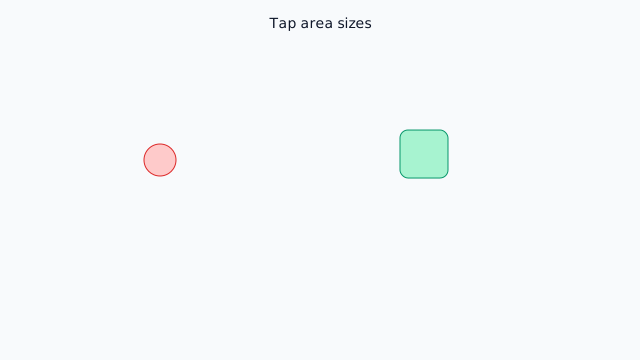
Cramped icons vs spaced tap areas
Supporting visual
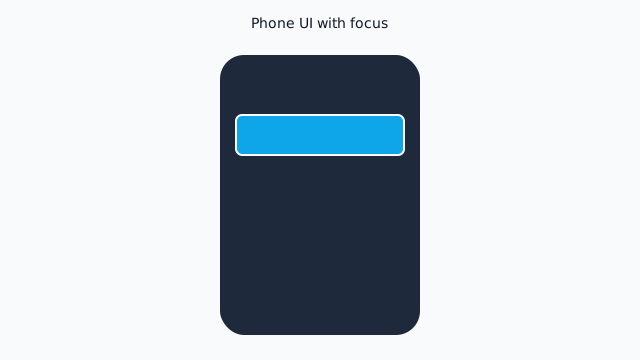
Focus highlights what will be announced next
Supporting visual
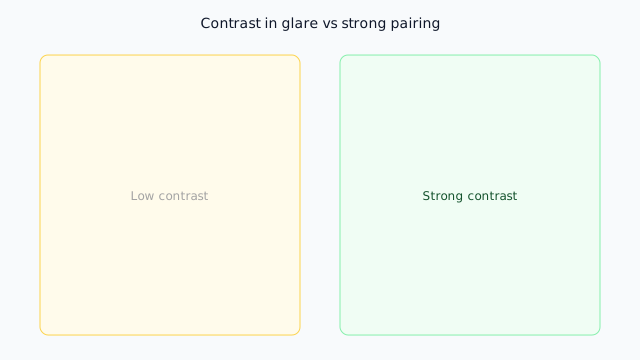
Pale text struggles in bright environments
Supporting visual
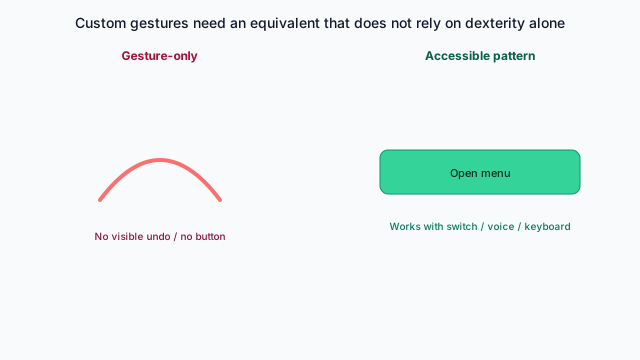
Offer a visible alternative to custom gestures
Comparison: Harder to use versus More accessible
Harder to use
- Mystery-meat icons without tooltips or text.
- Pinch-only maps with no search or list fallback.
- Horizontal-only layouts that clip when zoomed.
More accessible
- Visible labels or aria-label on icon buttons.
- 44-ish px targets with margin between neighbors.
- Motion respects prefers-reduced-motion.
How to test mobile accessibility
Touch and layout
- Measure tap targets on real hardware or high-zoom emulator.
- Rotate portrait and landscape; confirm no loss of functionality.
- Pinch-zoom pages unless there is a narrow, documented exception.
- Increase system text size and confirm layouts do not truncate critical actions.
Assistive technology
- Walk primary tasks with VoiceOver (iOS) or TalkBack (Android).
- Verify dynamic content uses live regions or focus moves appropriately.
- Tab through interactive elements with an external keyboard on tablet if applicable.
- Pair with an automated scan of your mobile URL for DOM-level issues.
How to improve mobile accessibility
Component patterns
Reuse buttons and links with consistent hit areas; avoid nesting scrollable regions without clear focus handling.
Spacing and targets
Increase padding, add text labels next to icons, and separate destructive actions from primary ones.
Labeling and semantics
Prefer native elements; when you cannot, mirror roles, names, and state that match the visual control.
Motion and responsiveness
Honor prefers-reduced-motion, avoid autoplay that cannot be paused, and test CSS grid/flex collapse at narrow widths.
Scan your website (mobile web)
Paste the same URL you open on a phone. The scanner exercises the page in a browser context—ideal for responsive sites, PWAs served over HTTPS, and mobile breakpoints.
Working with downloads too? See PDF accessibility guide for tagging and remediation workflows.
FAQ
- Does TestAccessibility scan native iOS or Android apps?
- No. The public scanner loads URLs in a browser. Use platform accessibility settings, Xcode/Android Studio inspectors, and device testing for native apps. This page still helps because labels, targets, and contrast rules rhyme across mobile web and native UI.
- Why is mobile accessibility different from desktop?
- Smaller viewports, touch instead of precise pointers, motion sensitivity, variable text scaling, and one-handed use change how failures show up. Something “passing” on a wide monitor can still be unusable on a phone.
- How does mobile web testing help?
- Responsive breakpoints reflow content, hide navigation behind icons, and shrink tap targets. Scanning your deployed mobile URL (or emulating in devtools before go-live) catches many DOM-level issues that hurt phone users.
- What about VoiceOver and TalkBack?
- They expose the accessibility tree your platform or browser builds. Unlabeled buttons, wrong roles, and dynamic updates that are not announced remain problems whether the surface is native or web.
- What is a minimum touch target size?
- Platform guidelines often cite roughly 44×44 points or dp for primary controls; the exact number varies by OS. Treat that as a baseline and add spacing so adjacent targets are not ambiguous.
- Should I test in landscape?
- Yes. Rotation reflows layouts and can expose clipped content, lost focus, or controls that disappear. Unless you have a narrow exception, support both orientations for web content.